
LMSpeed Quick Speed Test Guide
Launch a 5-round LMSpeed API benchmark with URL parameters for base URL, API key, and model ID.
Overview
You can directly access a URL with parameters in your browser to automatically fill in the base URL, API key, and model ID, then launch LMSpeed's 5-round conversation speed test without manually entering each field on the page.
Quick Start
Click or copy the link below to start testing immediately:
Parameter Description
baseUrl: The base URL of the OpenAI-compatible API endpoint to test, e.g.,https://api.suanli.cn/v1.apiKey: The API key for the endpoint. The key in the example link is for demonstration only; please replace it with your own key when using.modelId: The model ID to test, e.g.,free:Qwen3-30B-A3B.
Create Your Custom Speed Test Link
-
Prepare your API endpoint information.
-
Replace
baseUrl,apiKey, andmodelIdin the template below:https://lmspeed.net?baseUrl=YOUR_BASE_URL&apiKey=YOUR_API_KEY&modelId=YOUR_MODEL_ID -
Open the generated link in your browser, and the page will automatically fill in the parameters and start the 5-round speed test.
Security Tips
- Do not share links containing private API keys in public places.
- If you need to distribute speed test links within your team, consider setting minimum permissions or temporary quotas for that key first.
NEW API Speed Test Setup Tutorial
If you are using the NEW API management platform, you can configure the one-click speed test feature in the admin panel, allowing users to quickly access LMSpeed for testing through chat applications.
Setup Steps
1. Navigate to Chat Settings
- Log in to the NEW API admin panel
- Find the "Administrator" menu in the left navigation bar
- Click "System Settings"
- Click the "Chat Settings" tab in the top navigation bar
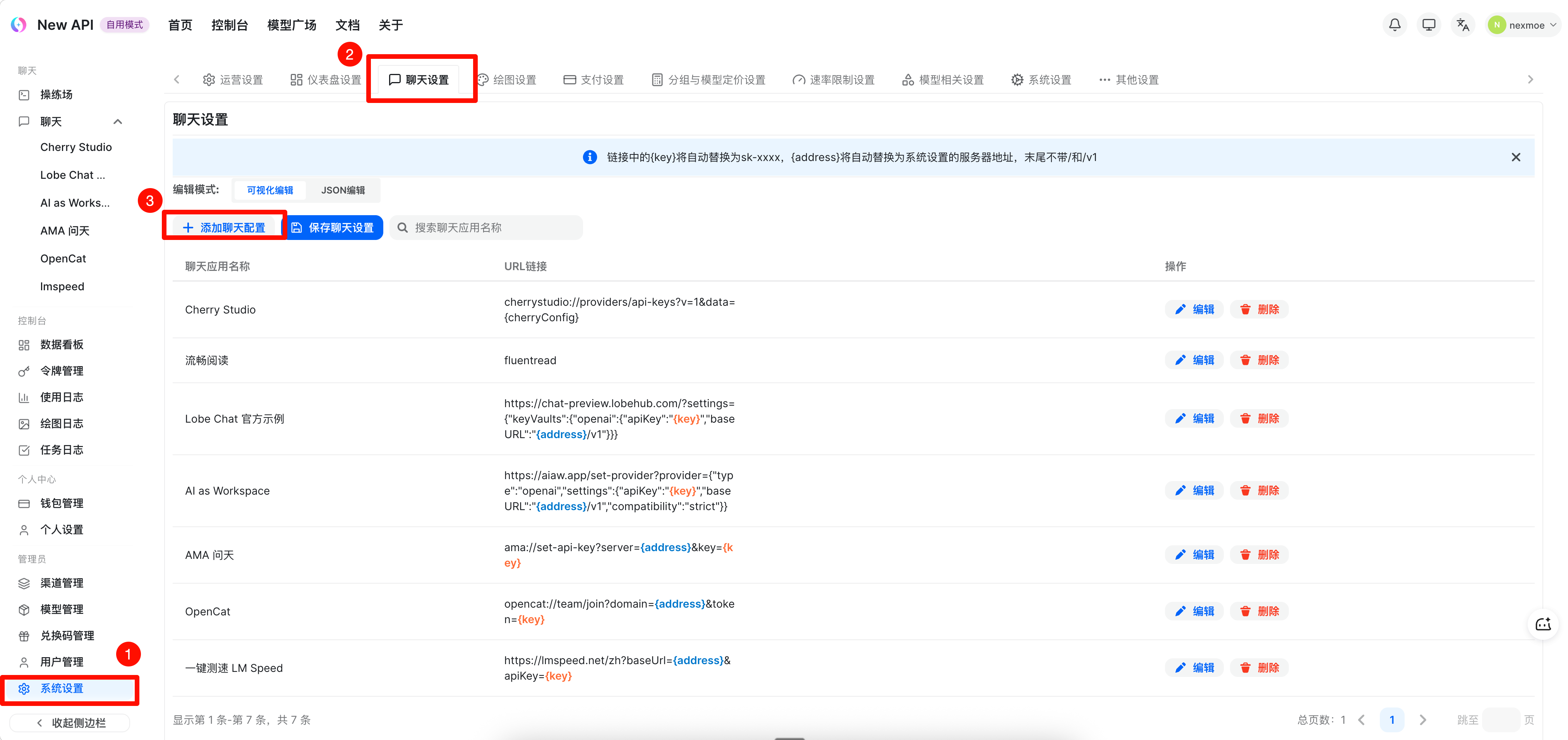
Illustration: Chat Settings page showing the list of configured chat applications
2. Add Chat Configuration
- On the Chat Settings page, click the "Add Chat Configuration" button in the top right corner
- In the edit dialog that appears, fill in the following information:
- Chat Application Name*: Enter the application name, e.g.,
LMSpeed Quick Test - URL Link*: Enter the following template link
https://lmspeed.net?baseUrl={address}&apiKey={key}
- Chat Application Name*: Enter the application name, e.g.,
Illustration: Edit Chat Configuration dialog with URL link field highlighted
3. URL Link Parameter Description
Use the following placeholders in the URL link:
{key}: Will be automatically replaced with the user's API key{address}: Will be automatically replaced with the server address
Note: The {key} in the link will be replaced by the API key, and {address} will be replaced by the server address.
4. Save Configuration
- After confirming the information is correct, click the "Confirm" button at the bottom of the dialog
- The configuration will be added to the chat application list
- Click the "Save Chat Settings" button in the top right corner of the page to save all changes
Usage
After configuration, users can:
- Find the configured application under the "Chat" menu in the left navigation bar
- Click the application name to open the LMSpeed test page
- The system will automatically fill in the user's API key and server address without manual input
Configuration Example
Here is a complete configuration example:
- Chat Application Name:
LMSpeed Quick Test - URL Link:
https://lmspeed.net?baseUrl={address}&apiKey={key}
Important Notes
- URL Format: Ensure the URL contains the
{key}and{address}placeholders, which the system will automatically replace - Language Parameter: The root path
/indicates the English interface; you can modify it to/zh(Chinese) or other languages as needed - Save Settings: After adding or modifying configurations, be sure to click the "Save Chat Settings" button, otherwise changes will not take effect
- Edit Existing Configuration: Click the "Edit" button in the list to modify existing configurations
- Delete Configuration: Click the "Delete" button to remove unwanted configurations
Frequently Asked Questions
Q: Why aren't parameters automatically filled when clicking the chat application?
A: Please check if the URL link correctly uses the {key} and {address} placeholders. The system requires these placeholders to perform replacements.
Q: Can I configure multiple speed test applications?
A: Yes, you can add multiple chat applications with different configurations, such as different language versions or applications with different speed test parameters.
Q: How do I modify a saved configuration?
A: In the chat application list, click the "Edit" button for the corresponding row, make your changes, click "Confirm", and then click "Save Chat Settings" to save the changes.
Last updated: